 KeepNote
中文 | English
Scan to a ledger entry
About a minute
1. On the Bookkeeping tab, tap + and choose Scan Receipt
You can also use Camera Scan and shoot the receipt directly. Recognition is identical — using the photo library just lets you take the picture first and pick it later.
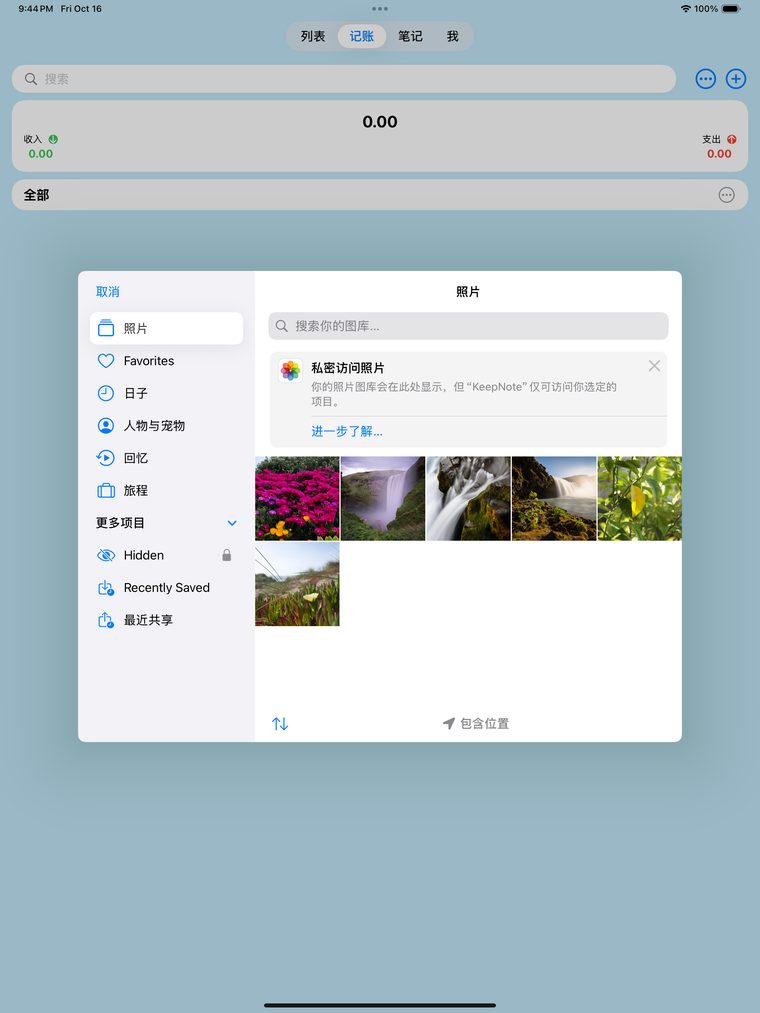
Bookkeeping tab → + → Scan Receipt
2. Check what was read, fix anything that is off
Recognition gives you the merchant, amount and date, plus the line items on the receipt. Every one of them is editable — just tap it.
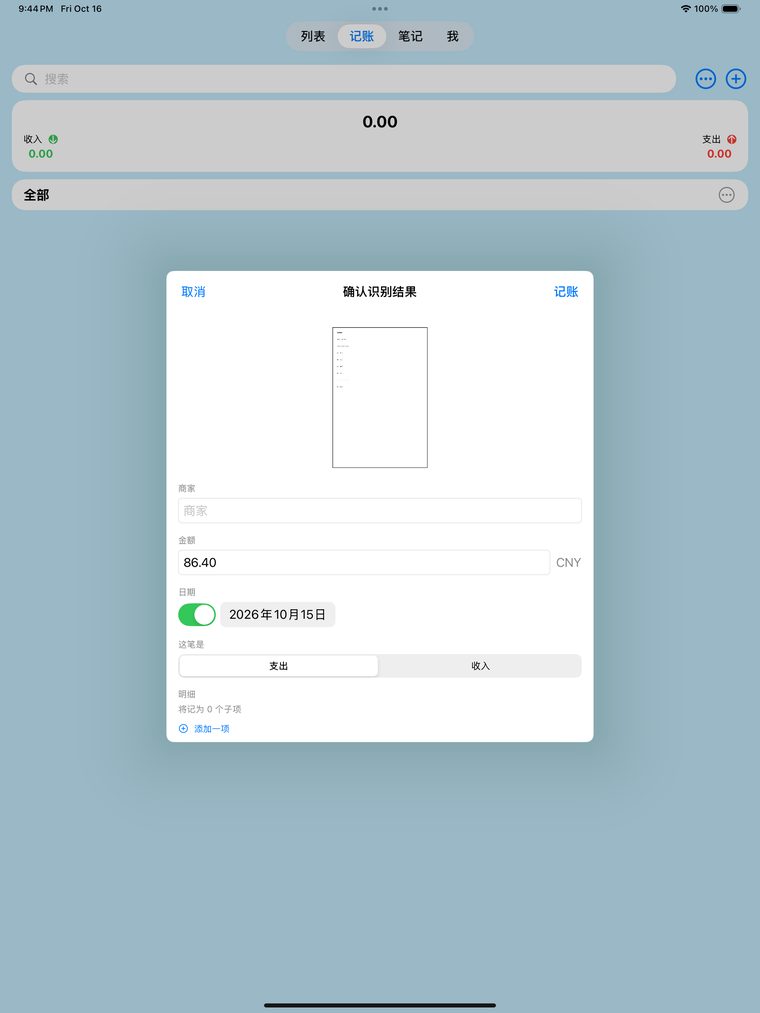
Confirm what was read: amount, date and income/expense are all editable
3. Choose Expense or Income, then tap Save
This creates a ledger entry. You can change it later from the receipt's detail page.
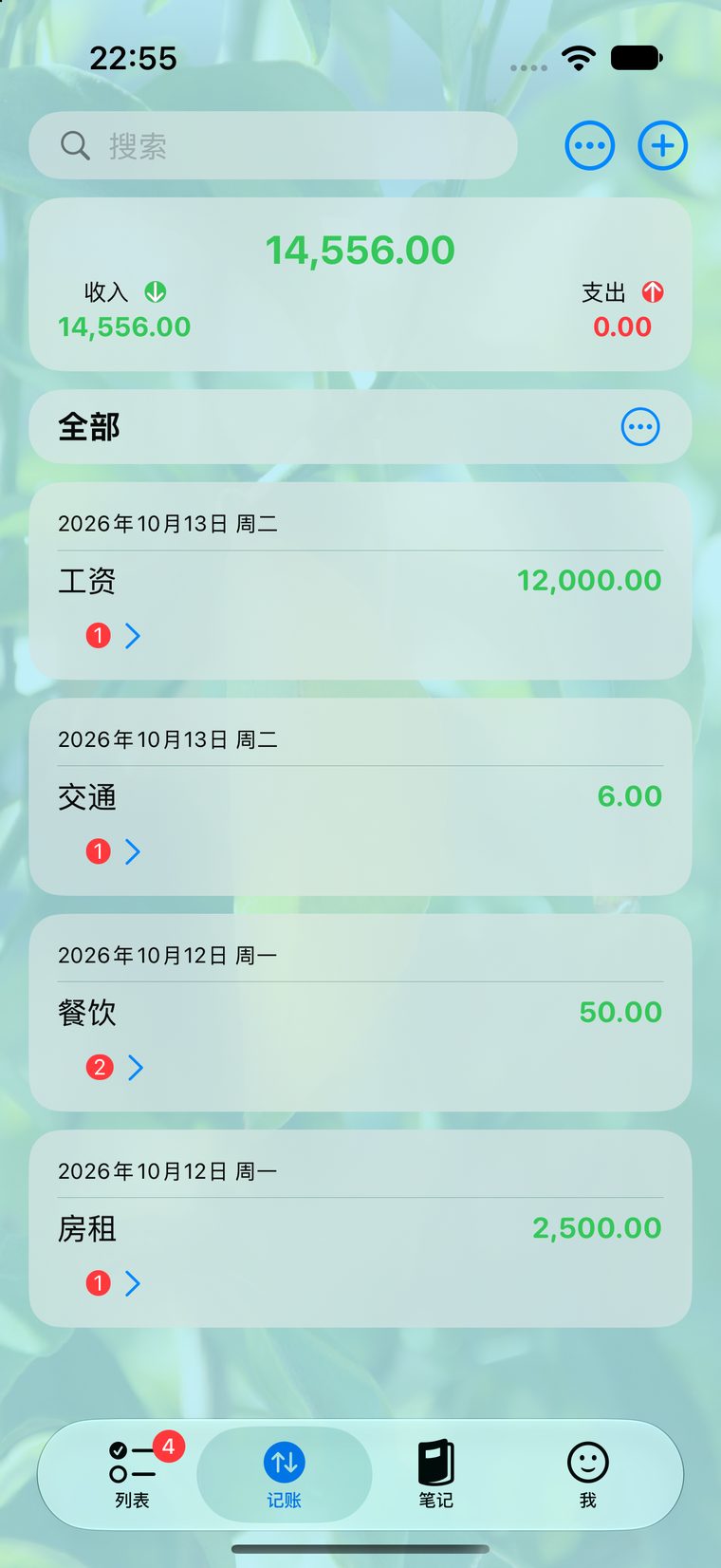
Once saved, it shows up on the bookkeeping home
Common questions
What if it read something wrong? Fix it on the confirmation sheet, or tap "Not recognised correctly" on the receipt's detail page to tell us.
How many scans do I get for free? Three per month. Unlimited with a subscription.
Where does the original image go? To our servers, for recognition and the cloud vault. See the privacy policy.