 KeepNote
中文 | English
The cloud receipt vault
Requires KeepNote VIP
Every receipt you scan goes into the vault. It is organised by group — you first see which groups exist and how many receipts each holds, and only tap into one to see its contents. With a lot of receipts that is far quicker than scrolling.
1. Open the vault — you land on the groups
At the top is All, then the groups you created, and usually Ungrouped at the end. Each card shows a count and a total.
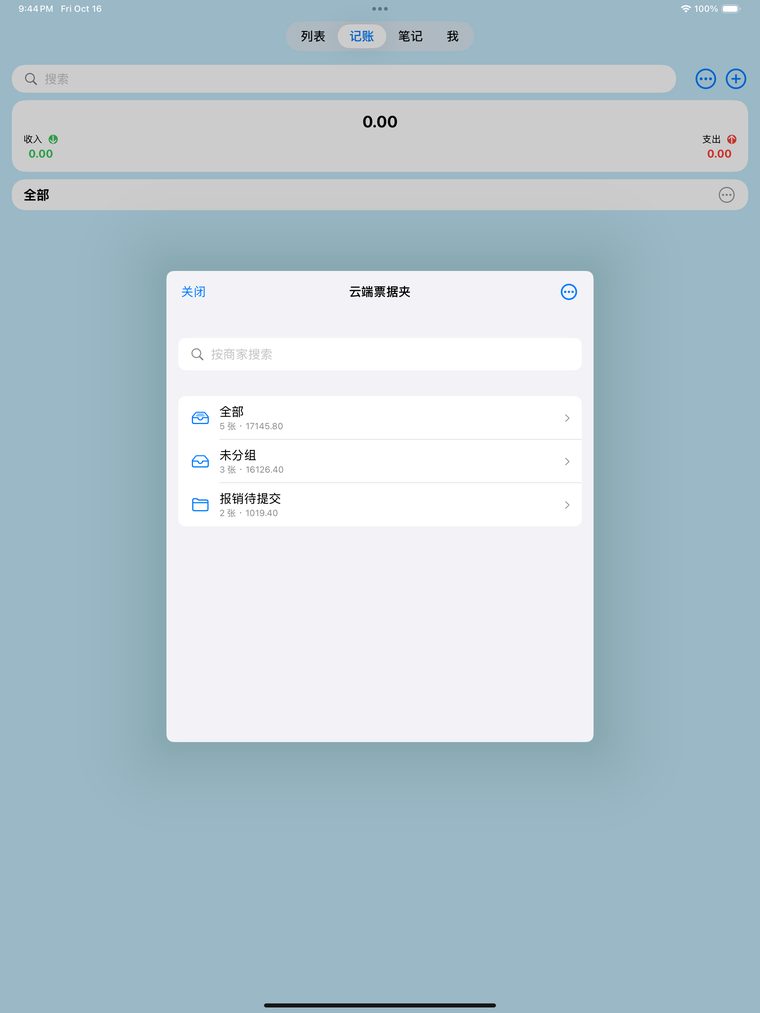
Group cards: you know where to look before tapping
2. Tap a group to see just those receipts
The chevron at the top left takes you back up. The footer shows the count and the income/expense totals for that group only.
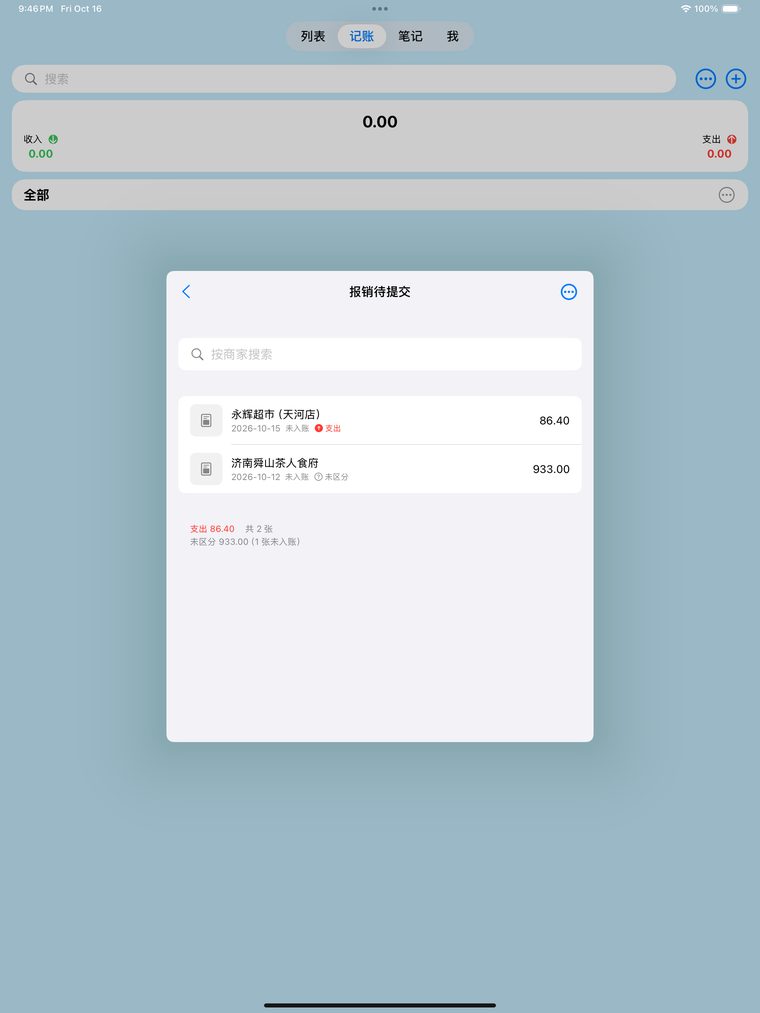
Inside "Reimbursement": only that group
3. Open one to see the image, group and flow
The detail page has the original image, amount, date, line items and the raw recognised text. Group and income/expense are both changed right here, and take effect immediately.
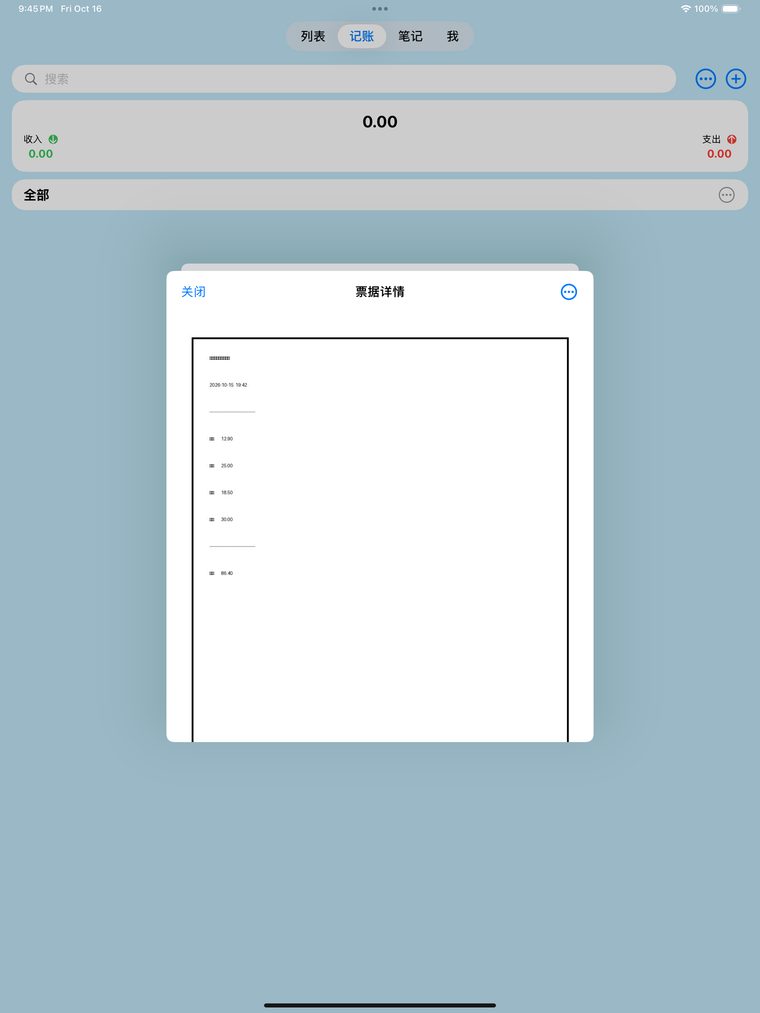
Detail page: group and income/expense are editable
Creating groups
Vault → ⋯ → Manage Groups → type a name. To file a receipt: open it → Group → pick one.
What else it does
· Search by merchant, and across the text recognised on the receipt;
· Sort and group by month, booking status, income/expense, merchant or your own groups;
· Export to CSV, and the web version has a monthly report.
The web version
Open keepnote.host/app in a desktop browser and sign in with the same email you use in the app to see the same data (read-only). For safety, the web version signs you out after 15 minutes of inactivity.